Augmenter la longueur des chemins d’accès sur Windows 10 (+ de 260 caractères)
La petite astuce du jour qui peut sacrément vous dépannez dans certains cas, comme par exemple si OneDrive refuse de vous synchroniser certains fichiers en indiquant que les noms sont trop longs. (ce n’est...
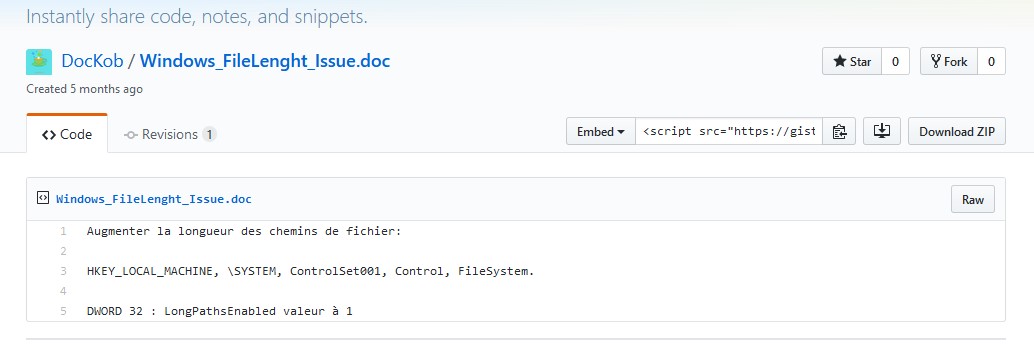
La petite astuce du jour qui peut sacrément vous dépannez dans certains cas, comme par exemple si OneDrive refuse de vous synchroniser certains fichiers en indiquant que les noms sont trop longs. (ce n’est pas obligatoirement le nom du fichier lui même mais le chemin d’accès depuis la racine)
Vous ne voudrez pas forcement raccourcir leurs noms et bien la solution c’est le registre !
Lancez regedit.exe en administrateur puis rendez-vous à la clé indiquée pour créer un DWORD :
1 Configure Forced silent auto reconnection 1. Click Start, type REGEDIT in search bar, and then click OK. 2. Locate and click the following registry subkey:
HKEY_LOCAL_MACHINE\Software\Microsoft\Windows\CurrentVersion\NetCache 3. Click Edit, point to New, and then click DWORD Value. 4. Type SilentForcedAutoReconnect, and then press ENTER to name the value. 5. Double-click SilentForcedAutoReconnect. 6. In the Value data box, type 1, and then click OK. 2 Computer Policy\Administrative Templates\Network\Offline Files\Action on server disconnect Tip: To configure this setting without establishing a setting, in Windows Explorer, on the Tools menu, click Folder Options, click the Offline Files tab, click Advanced, and then select an option in the "When a network connection is lost" section. Also, see the "Non-default server disconnect actions" setting.
Pour approfondir
La limite MAX_PATH fait partie de ces héritages de Windows qu'un bon guide généraliste explique une bonne fois pour toutes.

Prendre en main, régler et dépanner Windows 11.
Partager
Nos recommandations
Outils et services que nous utilisons et recommandons
Livres & formation
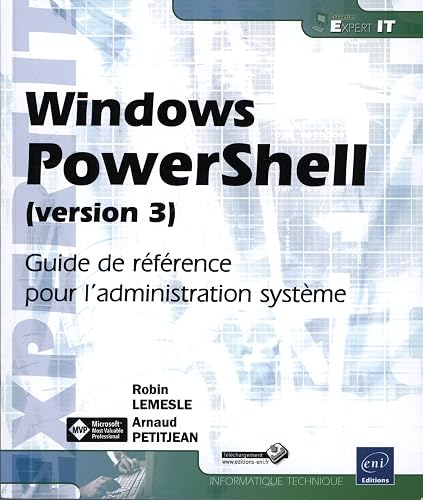
La référence en français pour scripter et administrer Windows en PowerShell.

Installer, configurer et administrer un serveur Windows pas à pas.
Sécurité & authentification

Stockage & sauvegarde
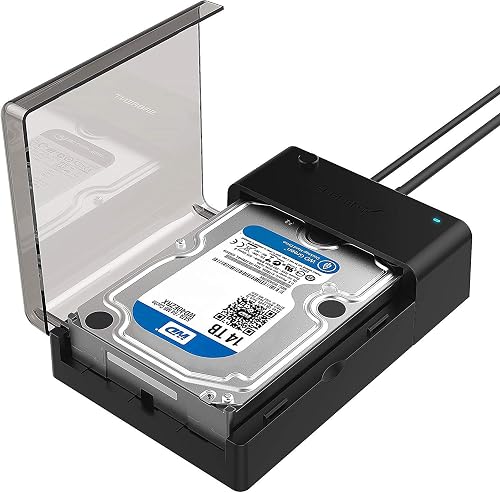
iodd ST400 Boîtier 2,5" Externe crypté - USB-C 3.1 Gen 1 | Odd/HDD virtuel amorçable (ISO, VHD, VMDK) | Chiffrement matériel AES256-XTS (76 Chiffres) | Bloqueur d'écriture matériel | Made in Korea

SSD portable USB 3.2, jusqu'à 1 050 Mo/s en lecture.

